A room that builds itself, in one reel.
Room builds itself is a template in RoomGen Studio’s Reels tool. It takes one finished render, strips it back to a bare shell, then plays the fit-out forward in eight seconds until the room you designed is standing there, lit. The craft is in choosing a render with something to show at every stage, and checking one frame before you spend on video.
Updated · RoomGen Studio
What the Room builds itself reel shows
Room builds itself turns a finished render into its own construction story. You give it one render. It gives you one keyframe to review, called Bare shell: the same room with a raw concrete floor, bare plaster walls and no fittings. From there a single clip plays the fit-out forward. The floor spreads across the concrete, the walls take their finish, the furniture slides into place, and the lights drop down and switch on last.
The order is what makes it work on a phone. Each stage lands on its own, so the viewer reads the room layer by layer instead of watching one picture dissolve into another, and the ending is the lights coming up on the room you designed. The clip is built to bring in only what your finished render contains, so the sofa that arrives should be the sofa you specified and the fittings that switch on should be the ones in your scheme. Watch it once before it goes to a client all the same.
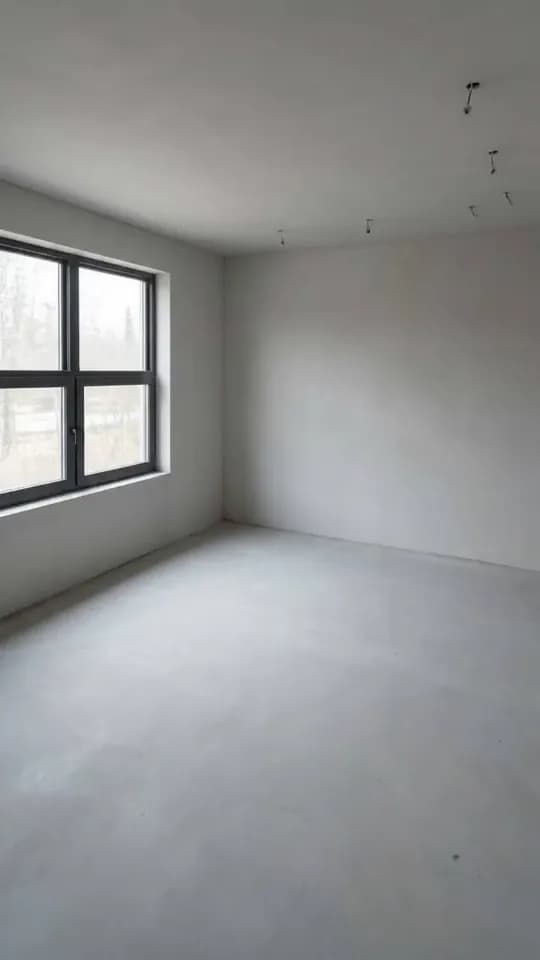
Bare shell
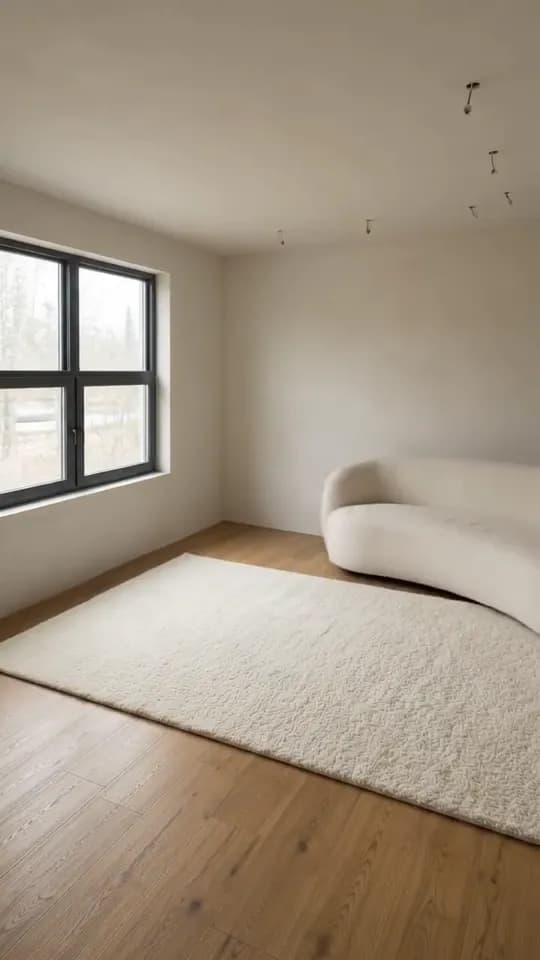
Mid-build
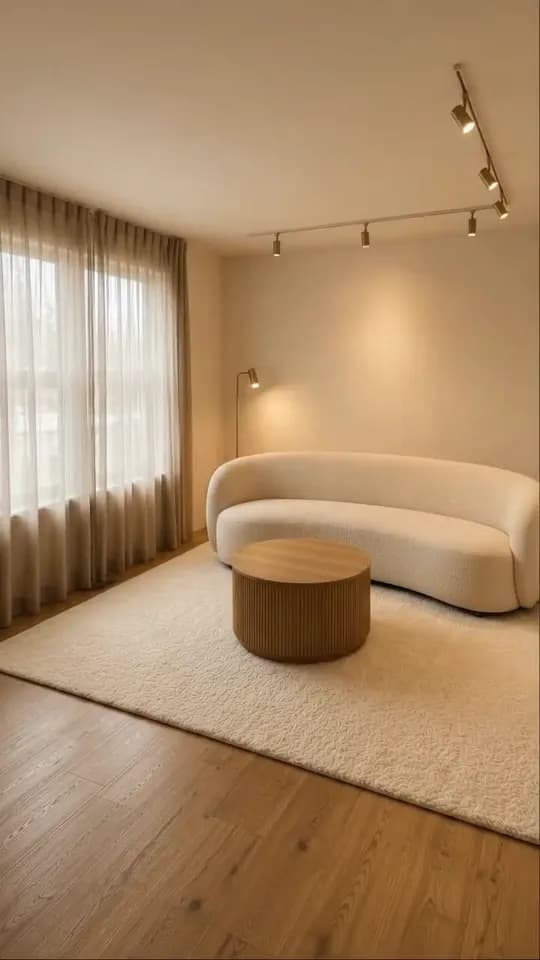
Finished render
Room builds itself, renovation reveal, pop-in or fly-in
Choose the Room builds itself template when the room had no meaningful before: a new build, an extension, a loft conversion, a shell-and-core office floor, a flat handed over bare. The opening frame is raw rather than tired, so the clip credits you with everything the viewer sees at the end, surfaces included.
| Template | Opening frame | What changes | Frames and clip | Best for |
|---|---|---|---|---|
| Room builds itself | Your room as a bare shell | Floor, walls, furniture, then lights | 1 keyframe; one 8-second clip at 720p | New builds, extensions, full fit-outs |
| Renovation reveal | The room tired and worn | The fabric of the room, through a construction stage | 2 keyframes; two 4-second clips stitched into about 8 seconds, 720p or 1080p | Refurbishments where the old room is the story |
| Furniture pop-in | Your finished room, emptied | Furniture and decor only | 1 keyframe; one 4-second clip, 720p or 1080p | Furnishing-only schemes and home staging |
| Furniture flies in | Your finished room without its furniture, curtains or hanging lights | Curtains, hanging light, rug and furniture; floor and walls stay | 1 keyframe; one 8-second clip at 720p | Schemes carried by soft furnishings and lighting |
A renovation reveal suits a story about what the room used to be, because it starts from a worn before frame and passes through construction on the way. Pop-in and fly-in both suit a scheme where the floor and walls stay and only the furnishing is yours. Pop-in brings the pieces in one after another; fly-in plays much the same arrival as this template, curtains and a lowering light included, without the surfaces.
Room builds itself is the one that starts from nothing and fits out the surfaces as well as the furniture. That makes it the natural choice for designers pitching a full fit-out, architects showing the inside of a new build, and developers or agents marketing a unit before anyone has moved in.
Which renders suit a Room builds itself reel
A good render for this template has something to show at every stage, because each stage is only as strong as the part of the image it reveals. Look for four things before you pick.
- A floor with character. The floor is the first change, and it fills the lower part of a vertical frame. Boards, stone or tile give the opening stage something to show. A floor hidden under furniture gives it very little.
- Walls that visibly change. Colour, lime plaster, panelling or tile make the second stage register. A white wall becoming a slightly whiter wall is hard to see against bare plaster, as the preview above shows.
- Furniture with a silhouette. A curved sofa, a round table or a deep rug reads at phone size as it slides in. A shelf of small objects turns into texture.
- Light fittings in view. The lights are the finale, so a pendant, a ceiling track, wall lights or a floor lamp gives the clip its ending. A render without a visible fitting leaves the final stage with less to show.
Two more checks apply to any reel. The architecture must be legible, with windows, doors, corners and the ceiling line plainly readable, because the bare shell has to keep them while everything else is stripped back, and a render where the walls sink into shadow gives a muddy shell. Every reel is also 9:16, so a landscape render is centre-cropped: keep the subject in the middle third of the width. The guide to interior design reels from a render covers the crop, and what survives it, for every template.
How to make a Room builds itself reel in RoomGen Studio
- Open Reels and pick the template. Reels sits in the VIDEO group of the RoomGen Studio sidebar. Choose Room builds itself in the template panel, or press Expand to browse the full library at full size.
- Pick the render. Choose the one finished render the reel should end on.
- Frames. Review the Bare shell keyframe and check it against your render, which sits next to it on the Frames step. Regenerate it with a short instruction, or swap in your own still from the Gallery or an upload, then confirm it. Each generated keyframe costs 150 credits; your own still is free.
- Settings. There is no tier or resolution to choose on this template: the clip is always eight seconds at 720p. The Generate button reads “Generate video · N credits”, the exact total, and the “N left” chip beside it shows how many reels at that price your balance can pay for.
- Generate and Result. Press Generate. The finished MP4 saves to the project Gallery, ready to download. Captions and music go on in whichever app you post from.
Nothing is spent on the video until you press Generate, so the Frames step is the place to take your time. If you close the wizard partway, Reels offers a resume card when you come back, and anything already paid for is kept.
Checking the bare shell before you spend
The video moves from exactly that shell to your render, so the shell decides whether the clip reads as one room being built or two rooms blending. Read it for continuity, not for looks. Hold it next to the finished render and check that:
- the windows and doors sit in the same place, at the same size, with the same divisions;
- the corners and the ceiling line meet at the same angles, so the viewpoint has not shifted;
- anything structural you designed around is still there, whether that is a column, a beam, a chimney breast or a step;
- the finishes and furniture are really gone, with no trace of the rug or a lamp left behind.
If one thing is off, regenerate with a short, physical instruction such as “keep the beam over the window” or “take the lamp out of the corner”. A short, specific instruction keeps the new frame close to what you asked for, but each regeneration is a fresh frame, so check the whole shell again. Each one is charged like a new frame, so name the one thing that is wrong rather than regenerating with no instruction at all.
You can also skip generation altogether. If your render began as a redesign of a real room photo and that photo shows the space while it was still bare, the original already shares the viewpoint and is often the most convincing shell you can give it. Supply it from the Gallery or upload it, at no cost. The test is the same one: it must line up with the render, or the clip looks like a cut to somewhere else.
Where to use a Room builds itself reel
This template shows scope. A single finished still says what the room looks like. A build says the whole scheme, from the surfaces to the lighting, was yours.
On Instagram Reels, TikTok or YouTube Shorts it works as a portfolio post that needs no explanation. Add captions and music in the app you post from, and keep any text clear of the top, the bottom and the right edge, where each platform lays its buttons and caption. One room makes one post, so a project with four finished renders becomes a short series rather than one long video.
In a client presentation it makes a strong opening before the drawings and the schedule, because it shows a client who has only ever seen a bare site what a full fit-out delivers. The MP4 sits in the project Gallery, so it is easy to send on after the meeting.
It suits marketing for new-build and off-plan units, show flats and development launches, as long as it is presented as a design visual. Label it as CGI or design intent, keep it apart from photographs of the actual property, and take the same care the guide to using AI video on property listings describes.
The same idea works outside. For the exterior of a new house, the hologram build reel raises the building on its empty plot and finishes on your exterior render.
What the template will not do
It is fixed by design. The clip is always eight seconds at 720p, there is one clip and one order, and you cannot lengthen a stage, swap the order or add one. That keeps it quick to make and consistent across a series of rooms. If you want a messier middle with work visibly under way, the renovation reveal is the template that has one.
It builds one room from one render. A whole apartment is one reel per room, each starting from its own finished render.
And it is design intent, not a build record. On a real site the order is different: wiring usually goes in before the walls are plastered, and finished floors tend to go down late so they stay clean. The clip orders the stages for the viewer, not for the programme, and the shell is generated unless you supplied your own photo. Do not present the reel as site progress, and never let a buyer take it as evidence of how a property was built.
Start from the render you are least likely to change, because the reel will carry it wherever it is posted, and give the Bare shell a careful check against your render before you press Generate.
This guide is kept by the RoomGen Studio team and describes Reels as it works on 28 September 2026. You can read more about RoomGen Studio and how the team works.
Common questions
How long is a Room builds itself reel?
Always eight seconds, in 9:16 vertical at 720p. The template runs as one fixed clip from the bare shell to your finished render, so there is no tier or resolution to choose, and eight seconds gives each stage of the fit-out time to land. The 720p is fixed as well. If a client or a platform needs a 1080p file, the renovation reveal and furniture pop-in templates offer 1080p.
Can I use my own photo of the empty shell?
Yes. On the Frames step you can supply your own still from the project Gallery or as an upload instead of generating one, and that costs nothing. It has to share the render’s viewpoint and framing, or the clip will look as if it cuts to a different room. Whatever is in the photo is what the reel opens on, so a site shot with ladders, tools or dust sheets in view opens the reel on them. Pick the cleanest bare shot you have.
Will the clip add furniture that is not in my render?
It is not built to. The clip is designed to bring in only what your finished render contains, so the pieces that arrive should be the ones you designed. It works the other way too: the reel ends on your render as it stands and is not built to add a piece the render leaves out, so put everything you want seen into the render before you start. As with any generated video, watch the finished clip before it goes to a client.
Can I use a Room builds itself reel on an off-plan listing?
Yes, as a design visual rather than a record of the property. Put it with the development’s CGIs rather than among the photographs, say in the listing text that it is computer-generated, and follow the disclosure rules of the market you sell in. If the specification changes, remake the reel from the updated render, so the finishes it shows still match what is being sold.
How are credits charged for a Room builds itself reel?
In two parts, at two moments. The Bare shell keyframe costs 150 credits each time the studio generates it, including every regeneration, and nothing if you supply your own still. The clip is priced on the Settings step: the Generate button reads “Generate video · N credits”, the exact total, the “N left” chip beside it shows how many reels at that price your balance can pay for, and no video credits are taken until you press Generate. RoomGen Studio’s Reels tool is on paid plans, and the sample project runs the whole flow free as a demo.
Try it on your own plan
Upload a floor plan or a room photo and see the first renders in about thirty seconds.
100 free credits · no credit card required
Get the next guide when it lands
We publish these as we work through what people actually ask about pricing, staging and turnaround. Leave an address to hear when a new one goes up.