Hologram build: a house rising from its empty plot.
Hologram build turns a finished exterior render into an 8-second vertical reel. It opens on the empty site, where a blue hologram scans the ground, the building rises as a wireframe, and the walls turn solid from the ground up until your render stands on the plot. The craft is in choosing a render with ground and sky around the building, and checking one frame before you spend on video.
Updated · RoomGen Studio
What the Hologram build template does
Hologram build is one of the nine templates in Reels, RoomGen Studio’s tool for turning a render into a vertical reel, and the one that raises a whole building from an empty site. You give it an exterior render of a house or building. It gives you one keyframe to review, called Empty plot: the same site before it was built, shown as an empty, level plot under the same sky. The clip then runs from that frame to your render, with the hologram scan and the wireframe in between.
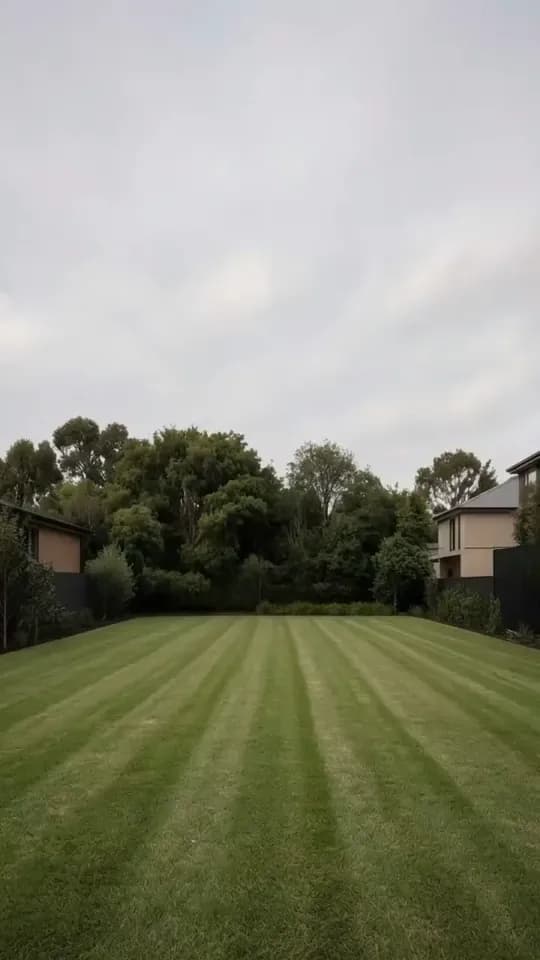
Empty plot
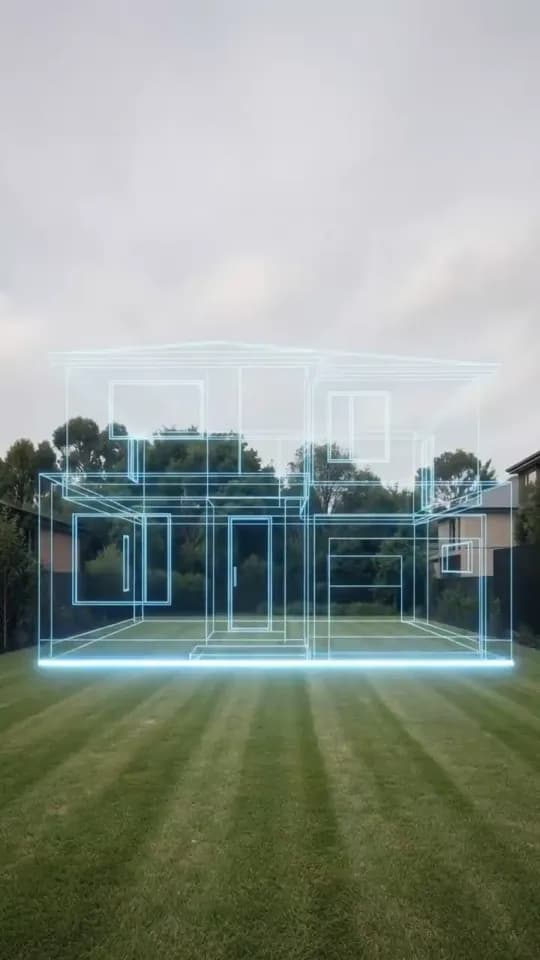
Wireframe
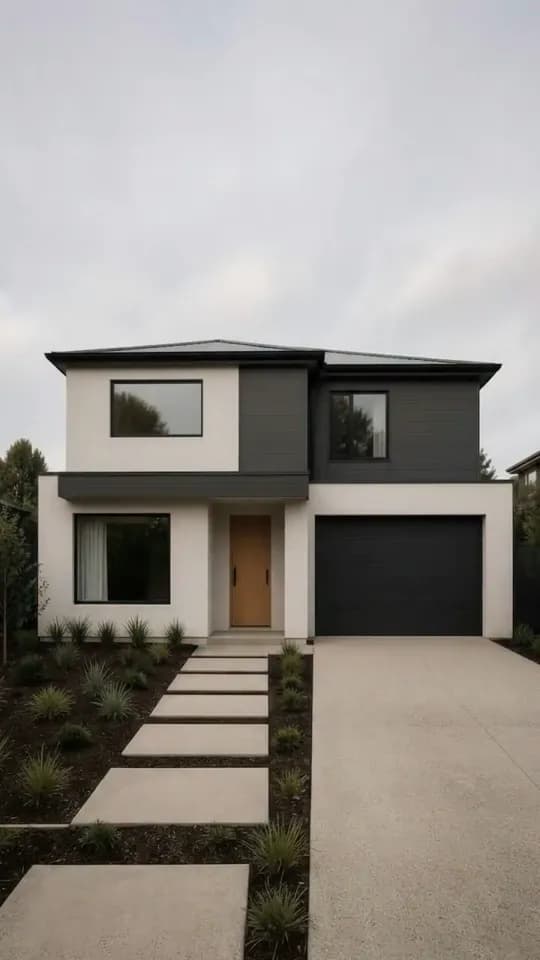
Your render
The reel carries one idea that needs no caption to land: there was nothing here, and now there is this house. A still render asks the viewer to imagine the site before it was built. This reel shows it to them.
Most of the template is fixed, which keeps it quick to run:
| Hologram build | What you get |
|---|---|
| Runs on | One exterior render of a house or building, seen from outside |
| Keyframe to review | One, called Empty plot |
| Keyframe cost | 150 credits each time it is generated; nothing for your own empty-plot image |
| Clip | One fixed clip, always 8 seconds at 720p |
| Frame | 9:16 vertical; a landscape render is centre-cropped |
| Result | An MP4 saved to the project’s Gallery, ready to download |
| Music, captions, overlays | Added in the app you post from |
| Access | Paid plans; the sample project runs the flow free as a demo |
Which exterior renders suit Hologram build
Start with a straight or three-quarter view of the building from ground level, with open ground in front and sky above. The template needs somewhere to build from and somewhere to rise into, and a render cropped tight to the facade has neither.
- A visible ground line. The building turns solid from the ground up, so keep the base of the walls in view. A tall hedge, parked cars or a front wall across the foreground hide the part of the build a viewer is meant to watch.
- Room above and below. Frame the house in the middle band, with sky above the roof and ground below it, so it never touches the edges, as in the example above.
- Neighbours that stay put. Rooflines, boundary trees and fences make the empty plot read as the same place. Without them, the opening frame could be anywhere.
- A width that survives the crop. From a 16:9 still, roughly the middle third of the width survives the move to 9:16. A long, low house shot square-on loses both ends. A narrower frontage, or a view taken from further back, keeps the whole building inside the strip.
Settle the render before you make the reel. The empty plot keeps your render’s sky, so if the scheme deserves a dusk presentation, change the time of day in the render first. Facade decisions work the same way. Cladding, roof and door choices are quicker to try on a still, as in restyling a house exterior, than on a finished clip.
Some projects belong to other templates. A shop, café, kiosk or food-truck front is better served by Business opens, covered in the shop opening reel guide, which shows the unit opening for trade. A room calls for one of the interior templates, such as the Room builds itself reel, which fits a room out from a bare shell, or the Furniture pop-in reel, which furnishes it piece by piece. And if all you have so far is a floor plan, Blueprint build turns the plan into a house instead.
How to make a hologram house reel in RoomGen Studio
Two choices come first, then the four-step wizard: Frames, Settings, Generate and Result.
- Open Reels and pick Hologram build. Reels sits in the studio sidebar, in the VIDEO group. Choose the template from the panel, or press Expand to see the full library at full size.
- Pick the exterior render. Use the final version, the one you would send the client.
- Frames: review the Empty plot frame. Generate it or use your own empty-plot image, check it closely, regenerate it with a short instruction if it needs a fix, and confirm it.
- Settings: check the total. There is no length or resolution to choose. The Generate button shows the exact credit total, and the chip beside it shows how many reels at that price your balance can pay for.
- Generate. Press it when the total looks right. You can close the wizard and come back later: Reels offers a resume card, and work already paid for is kept. If a clip fails outright rather than finishing, the step marks it Failed and offers Retry.
- Result. The finished MP4 is saved to the project’s Gallery, ready to download.
To budget a reel, add two numbers. The Empty plot frame is paid for at the Frames step: 150 credits each time it is generated, and nothing if you use your own image. The Generate button then shows the price of the video itself.
Reels is on paid plans. The sample project runs the whole flow free as a demo, so you can see each step of the wizard before you spend credits on a client’s building.
Checking the Empty plot frame before you pay for the video
This one frame decides most of the result, because the clip runs from it to your render. Put it beside the render and check that the viewpoint, sky and surroundings match, and that the plot is empty where the building and its landscaping will go.
- The viewpoint is the same. Same horizon height, same angle on the plot.
- The sky matches. The same cloud and the same brightness, so the light holds steady while the building appears.
- The surroundings stay. Rooflines, fences and trees at the edges sit where they do in the render.
- The ground is ready to build on. Empty ground where the building will stand, level or matching the site’s real slope. In the preview, the Empty plot is plain lawn, with no driveway or planting yet. If your site should keep a feature, name it when you regenerate, for example “keep the driveway”.
When something is off, regenerate with a short plain-language instruction that names the fix, such as “keep the fence on the right” or “bare soil instead of grass”. If you want the driveway or a planted bed kept in the opening frame, say so the same way, for example “keep the driveway”. One specific instruction does more than several hopeful retries.
You can also skip generation and use your own empty-plot image. If you modelled the scheme yourself, a view rendered from the same camera with the building hidden makes an exact empty plot. A photo of the real site works too, if it was taken from the same position, height and angle as the render. One taken a few metres to one side looks like a cut to a different camera rather than a build.
Where a hologram house reel earns its place
The reel turns “here is the design” into “here is what goes on this plot”. That suits a handful of moments in an architecture, building or property practice.
- Announcing a project. A new commission, or a scheme shown for the first time. The reel gives the post a beginning and an end that a single still lacks.
- Opening a client presentation. Raise their house on the plot they bought, then move on to the drawings and interiors.
- Off-plan and plot listings. For a developer or an agent, the reel shows buyers what the plot is for. The guide to AI video on property listings covers how to present it beside a sale.
- A project sequence. Open with the house rising, then cut to interior reels from the same scheme, so the story runs from site to front door to finished rooms.
- Posting it. The MP4 is already the full-screen vertical shape of Instagram Reels, TikTok and YouTube Shorts, so it goes up without reframing. Each app lays its buttons and caption along the bottom and down the right-hand edge, so in a frame like the preview, put a short title in the open sky above the roof. If the app lets you choose a cover frame, choose the finished house, and preview the post there before it goes out.
What Hologram build will not do
The effect is fixed. The scan, the wireframe and the solid build are the template, and the length and resolution are set for you, so 720p is the ceiling if you need a larger master for a big screen. You steer the result through the render you pick and the frame you confirm.
A finished reel has no redo button. To change it, start a new Hologram build run from the same render. That is a fresh run: you confirm an Empty plot frame again, generated or your own, and the clip is charged again at the price the Generate button shows. Before you pay twice, work out where the fault started. A shifted horizon, a changed sky or a missing neighbour is a frame problem, so fix the frame in the new run before you generate.
If the frame matched and the clip still went wrong, with the wireframe tracing a different outline, the building warping or drifting as it turns solid, or something appearing that the render does not have, check the render against the render checks earlier in this guide: the ground line in view, sky above the roof and the building inside the middle third of the width. Where it falls short on any of those, change the render before the next run. Where it already meets all three, a new run from the same render, with a frame that matches just as well, can come out differently, and it is charged again at the total the Generate button shows.
Nor is the reel a record of anything. The empty plot is a generated picture of the site, so nobody should read levels, boundaries or trees off it. The order in which the building appears is staged for the viewer, and a real build runs quite differently. Present the reel as design intent, and label it as a computer-generated visualisation wherever you would label a rendered still. For off-plan marketing, follow whatever rules your market sets for advertising property that is not yet built. That care matters most beside a property for sale, where a buyer could reasonably mistake a generated plot for a photo of the real site.
Used that way, Hologram build gives an exterior render a moment on a phone screen without changing the design. Once the demo has shown you the steps, try it on the exterior render you are proudest of.
This guide was written by the RoomGen Studio team and describes Reels as it works on 28 September 2026. You can read more about RoomGen Studio and how the team works.
Common questions
Can I use Hologram build for an extension or a refurbishment?
It tells a new-build story, so it suits a building that is not on the site yet: a new house on an empty plot, a replacement home once the old one has gone, or a new building on a cleared site. On an extension or a refurbished house, the Empty plot frame shows the site before anything was built, so the existing house vanishes and then rises again changed. Anyone who knows the house will read that as wrong. For work on an existing building, a before-and-after still made by restyling a photo of the house tells the story more honestly.
Can I use it on a block of flats or a commercial building?
Yes, as long as the render shows the building from outside. Its shape matters more than its use. A tall block suits the vertical frame, provided the roofline has sky above it and the base of the walls is in view. A long terrace or a wide office frontage is harder, because the crop keeps only the middle of a landscape render. Cover the outer thirds of the render with two fingers: if the building still reads as a whole, it will survive the crop.
Can the empty plot match a sloping or wooded site?
Yes. By default the Empty plot frame shows a level, empty plot under the same sky. If your real site slopes, or has trees the scheme keeps, regenerate the frame with a short instruction that names what you want, such as “ground slopes down to the road” or “keep the two oaks on the left”, and check it closely before you confirm. Where the site is too particular to describe in a sentence, use your own empty-plot image instead, such as a view rendered from the same camera with the building hidden.
Will the reel add a pool, cars or planting that are not in my render?
It should not. The reel follows your finished render, so the house, the planting and the hard landscaping it ends on are the ones you designed. That cuts both ways: the reel ends on the render as it stands, so if a pool or a garden room matters to the story, put it into the render before you start. It is still generated video, so watch the finished clip at full size before it goes to a client.
Can I use a real photo of the empty site as the Empty plot frame?
Yes, and on a real commission it can be the more honest opening. Add it at the Frames step from the Gallery or as an upload, in place of a generated frame. Whatever the photo shows is what the reel opens on, so a site with a digger, spoil heaps or hoarding in view opens on them: pick the cleanest shot you have from the render’s viewpoint. Caption the result as a design proposal all the same, because a real site followed by a rendered house can read as a record of finished work.
Try it on your own plan
Upload a floor plan or a room photo and see the first renders in about thirty seconds.
100 free credits · no credit card required
Get the next guide when it lands
We publish these as we work through what people actually ask about pricing, staging and turnaround. Leave an address to hear when a new one goes up.